Stock Price Alerts with Google Sheets and Apps Script
/ 4 min read
The Objective
To create a stock price tracking system using Google Sheets and Apps Script. The application will notify me if a stock I’m interested in is above or below my targeted buy or sell price.
Why Do This?
I like to get notified when a stock I’m tracking reaches a good entry or exit point. I created this simple system to do that for me.
The spreadsheet with a list of stocks I may be tracking. 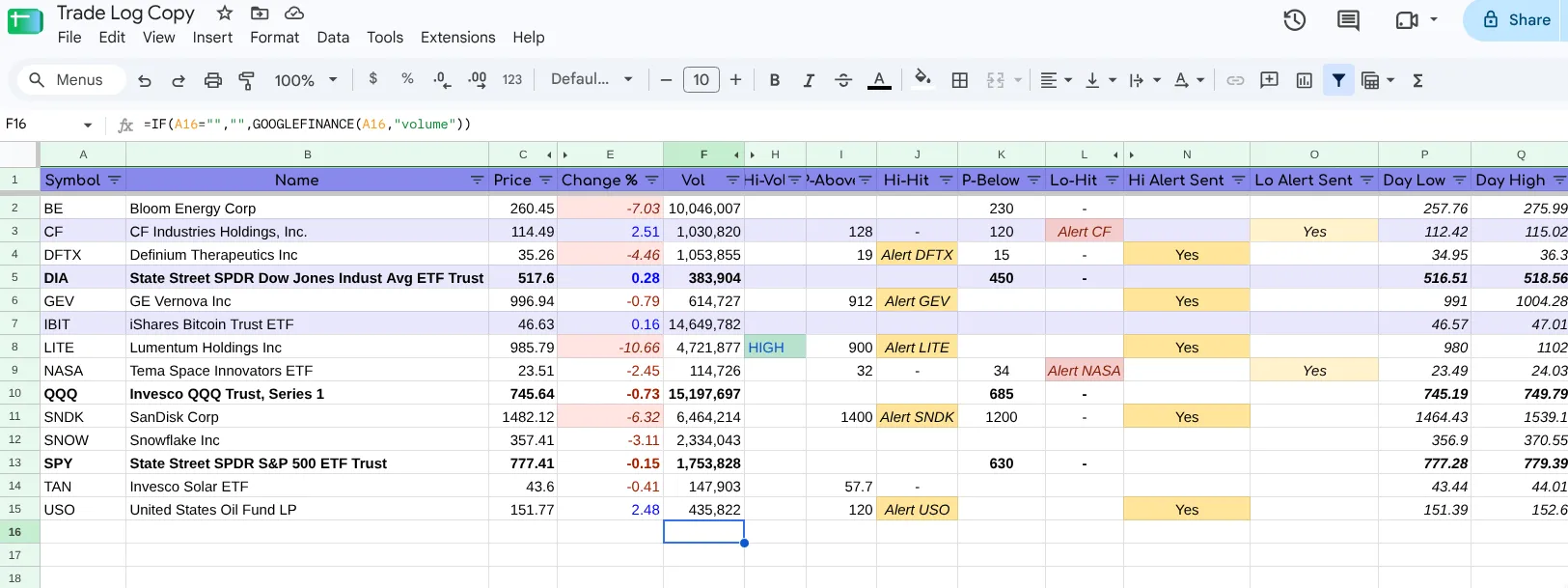
The Stock Alert Spreadsheet Explained
Each stock record shows the current price, price change and other metrics over the trading day. The alert system fields will be explained below.
Alert System Variables
P-Above - Enter a price above which an alert is triggered.
Hi-Hit - This field is populated with ‘Alert [ticker]’ if the ‘P-Above’ price is exceeded.
P-Below - Enter a price below which an alert is triggered.
Lo-Hit - This field is populated with ‘Alert [ticker]’ if the stock price falls below the ‘P-Below’ price.
Hi Alert Sent - This gets populated with a ‘Yes’ if an email alert is sent out for a ‘Hi-Hit’.
Lo Alert Sent - This gets populated with a ‘Yes’ if an email alert is sent out for a ‘Lo-Hit’.
Example Alert Emails
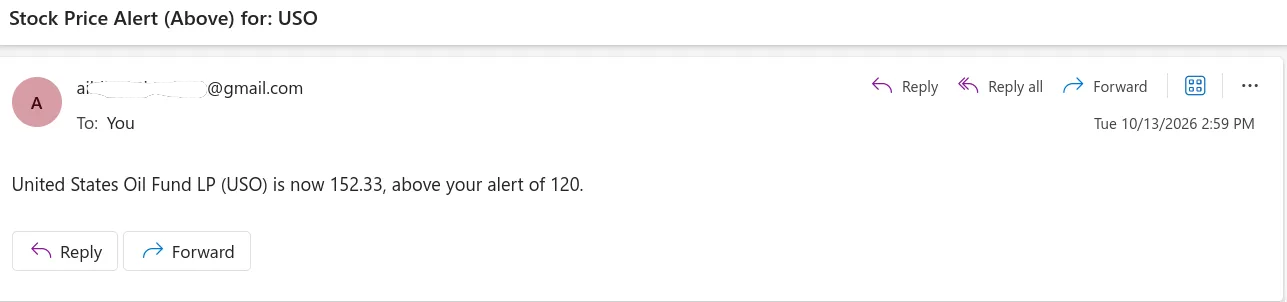
When the stock price is above our alert price:
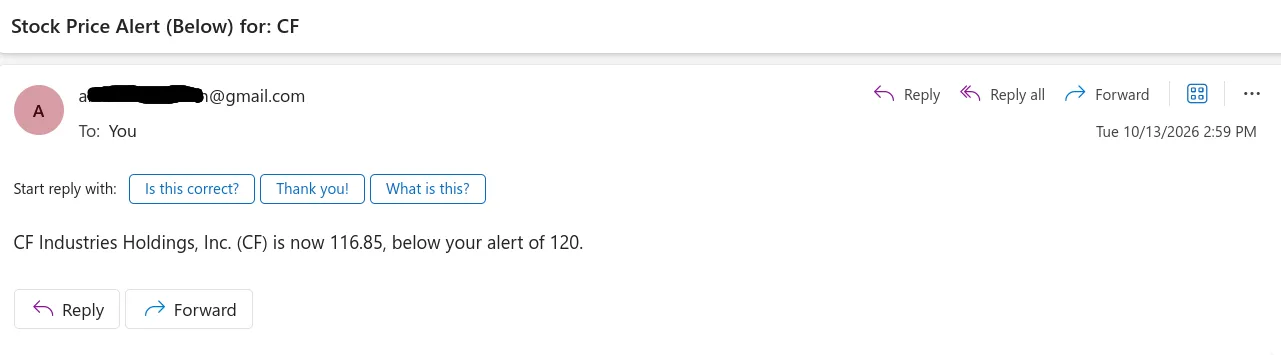
When the stock price is below our alert price:
Google Sheet Formulas
These are the Google Finance Formulas I Used
- Col B
=IF(A2="","", GOOGLEFINANCE(A2, "name"))Get the security name from the stock ticker in field A2.
- Col C
=IF(A2="","",GOOGLEFINANCE(A2,"price"))Get the security price from the stock ticker in field A2.
- Col D
=IF(A2="","",GOOGLEFINANCE(A2,"change"))Price change for the day.
- Col E
=IF(A2="","",GOOGLEFINANCE(A2,"changepct"))Percent change for the day.
- Col F
=IF(A2="","",GOOGLEFINANCE(A2,"volume"))Volume.
- Col G
=IF(A2="","",GOOGLEFINANCE(A2,"volumeavg"))Average Volume.
Help for Google Finance formulas is available here.
Alert Formulas
The alert formulas trigger events when the price or volume exceeds a value set by the user.
- Col H
=IF(G2="","",IF(F2>G2,"HIGH",IF(F2>G2*0.8,"MED","")))Displays ‘HIGH’ if the volume is greater than the average volume. It displays ‘MED’ if the volume is greater than 80% of the average volume.
- Col J
=IF(I2="","",IF(C2>I2,"Alert " & A2 ," - "))Displays ‘Alert [ticker]’ if the price is greater than the alert price.
- Col L
=IF(K2="","",IF(C2<K2,"Alert " & A2," - "))Displays ‘Alert [ticker]’ if the price is below the alert price.
Where Google Apps Script Comes In
Google Apps Script runs in the background and checks if the high or low alerts have been hit. If they have, then it sends out an email to the address set in the configuration sheet. When an alert email has been sent, it enters ‘Yes’ in one of the High or Low Alert Sent columns (N or O).
The Configuration Sheet
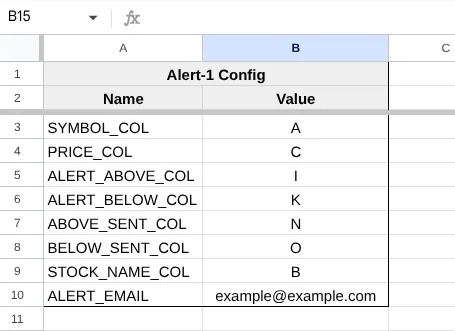
The alert sheet columns are set to descriptive variable names to make the code more human-readable and maintainable. The email address that receives the alerts is set here also.
/** * Reads the Config sheet (tab name: "Config") and returns a key/value map. * Row 1 = title, Row 2 = headers, Rows 3+ = Name | Value pairs. */function loadConfig() {  console.log("loadConfig: reading Config sheet");  const ss = SpreadsheetApp.getActiveSpreadsheet();  const configSheet = ss.getSheetByName("Config");  if (!configSheet) throw new Error("'Config' sheet not found");
  const lastRow = configSheet.getLastRow();  if (lastRow < 3) throw new Error("Config sheet has no data rows");
  const data = configSheet.getRange(`A3:B${lastRow}`).getValues();  const config = {};  for (const [name, value] of data) {    if (name) config[name] = value;  }  console.log(`loadConfig: loaded ${Object.keys(config).length} keys:`, JSON.stringify(config));  return config;}
Running the Script
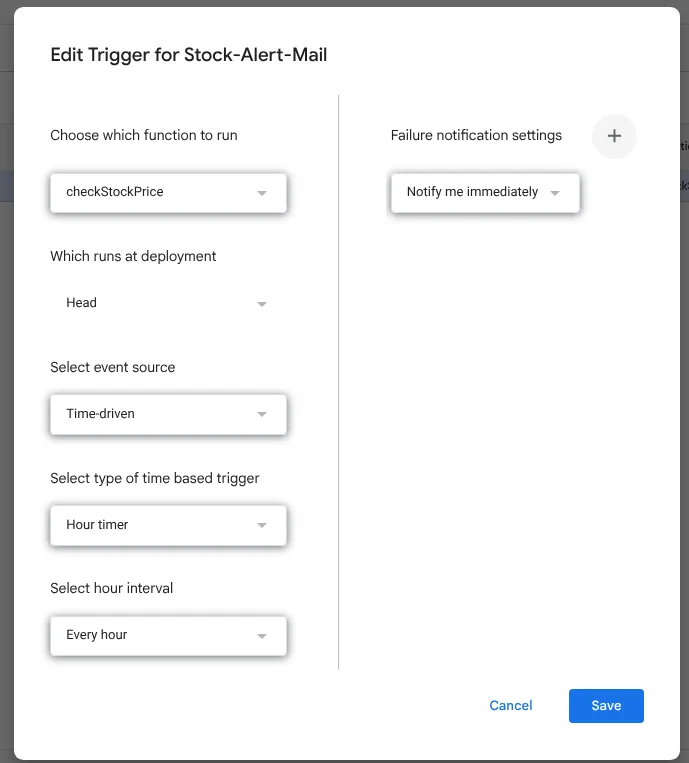
Google Apps Script allows the creation of triggers to run scripts based on specific conditions.

This script is activated by a time-based trigger to run every hour. It’s straightforward to set up in the Google Apps Script dashboard page.