Inserting QuickBooks Invoice Data into Google Sheets using Google Apps Script
/ 11 min read
The Objective
Create job schedules on Google Sheets using the information from QuickBooks invoices. Create Google Calendar events for each job in the schedule.
Why Do This?
The original labor intensive procedure was to manually copy invoice data out of QuickBooks into Google Sheets. Copy certain useful job scheduling information from the invoice. Paste that information into a Google Calendar event.
I built a Google Apps Script(GAS) process that does it automatically: pulls invoices from the QuickBooks API, writes each one to a structured schedule spreadsheet with its own tab, and automatically create Google calendar events for selected jobs.
Some parts of the proces are basic Google App Scrip coding. Other parts, such as querying the Quick Books API and the OAuth2 flow in a serverless environment are worth writing down.
Why Google Apps Script(GAS) instead of a Web App backend?
Google Apps Script(GAS) runs inside Google Sheets. There’s no server to provision, no separate auth layer for the spreadsheet, and the people who use this are already comfortable using Sheets.
The are some tradeoffs: the runtime is synchronous (no async/await), every file shares a global namespace and it’s a little slow. Testing requires a custom loader because GAS files have no import/export.
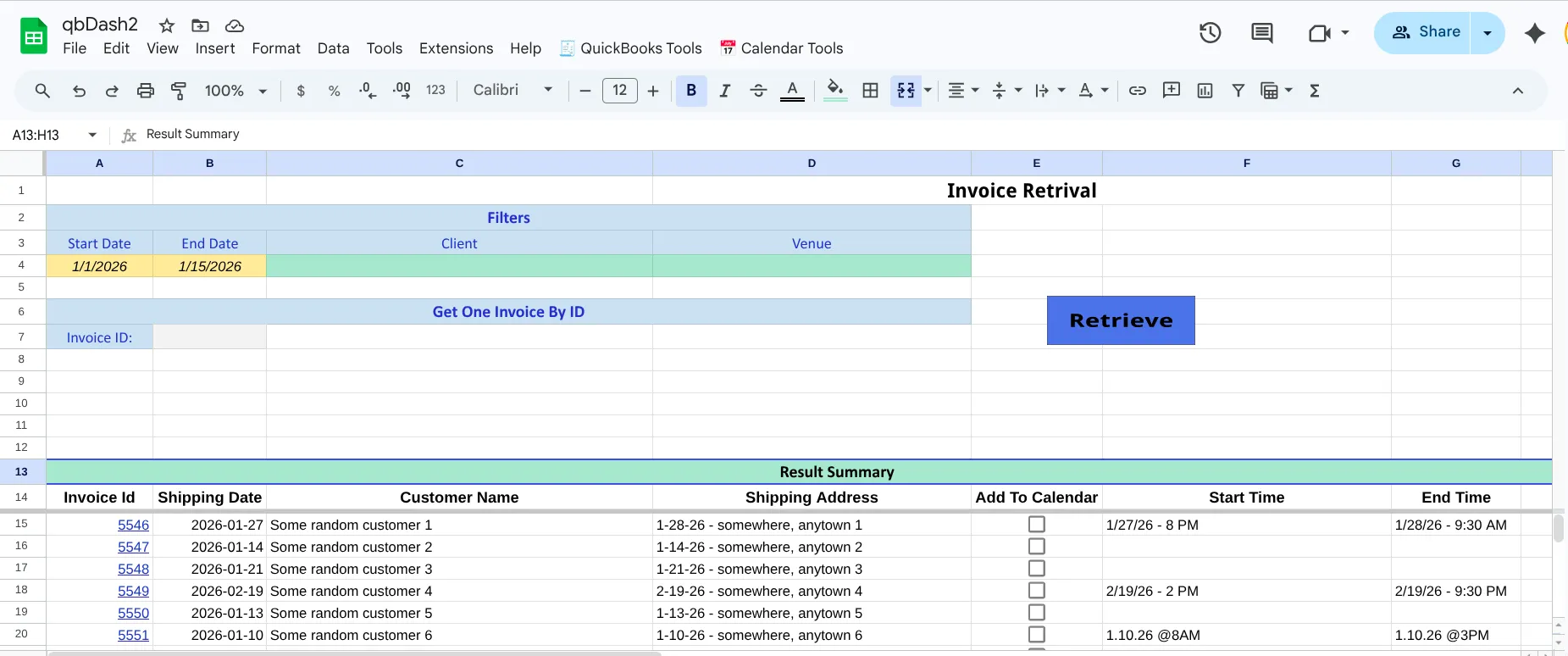
The Dashboard spreadsheet showing the search controls and result summary table.
Getting OAuth2 working in a stateless environment
This was fairly straight forward in QA but it took a long time to get this right in production. QuickBooks uses a standard OAuth 2.0 authorization code flow, but Apps Script doesn’t have persistent server endpoints. The callback URL has to be a GAS web app URL, and it’s derived from the script’s own ID:
https://script.google.com/macros/d/{SCRIPT_ID}/usercallbackI construct it at startup using ScriptApp.getScriptId():
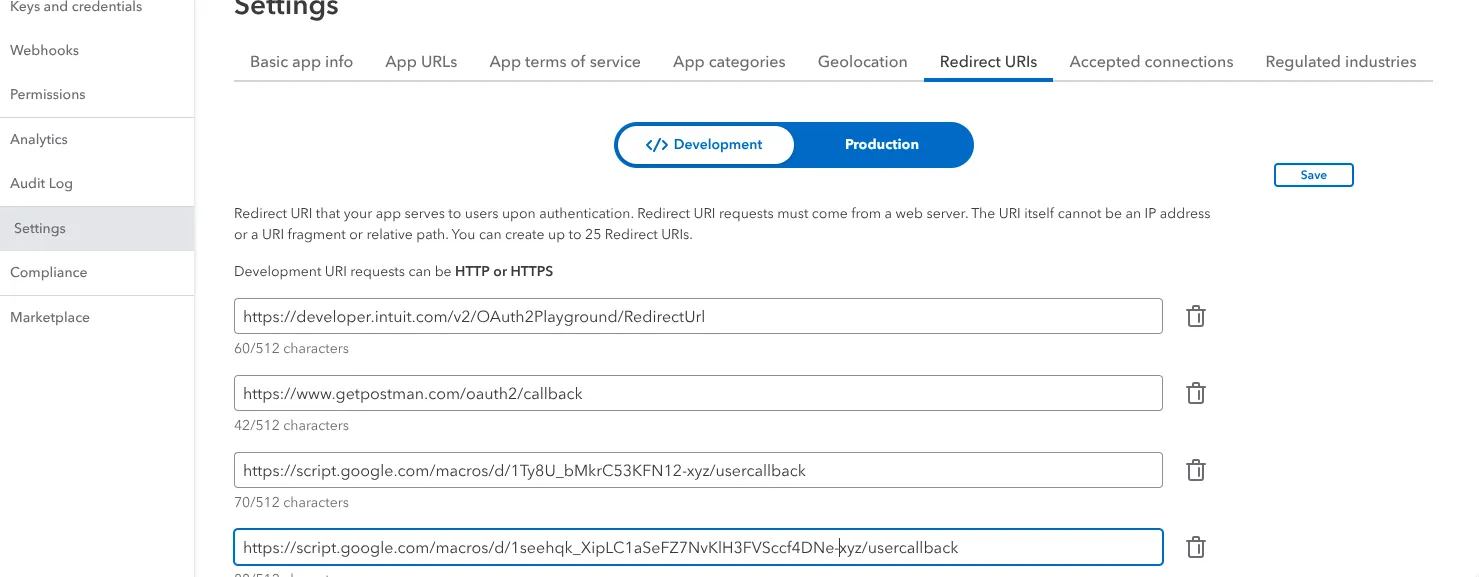
THIS_SCRIPT_ID = ScriptApp.getScriptId();RE_DIRECT_URI = `https://script.google.com/macros/d/${THIS_SCRIPT_ID}/usercallback`;That URI must be registered in the Intuit Developer Console under your app’s redirect URIs — exact match, no trailing slash. If it’s wrong, the callback returns Denied. with no further explanation.
The QuickBooks App QA setup.
I used the Google developers OAuth2 for Apps Script library. It handles token refresh, state parameter CSRF validation, and callback routing. The service object is configured once and reused across the request lifecycle:
function getService() { return OAuth2.createService("Quickbooks") .setAuthorizationBaseUrl(AUTH_URL) .setTokenUrl("https://oauth.platform.intuit.com/oauth2/v1/tokens/bearer") .setClientId(CLIENT_ID) .setClientSecret(CLIENT_SECRET) .setScope("com.intuit.quickbooks.accounting") .setCallbackFunction("authCallback") .setParam("response_type", "code") .setParam( "state", ScriptApp.newStateToken().withMethod("authCallback").withTimeout(120).createToken(), ) .setPropertyStore(PropertiesService.getScriptProperties()); // shared token}That last line is the important one. getScriptProperties() stores the token at the script level, shared across all users who have access to the spreadsheet. Using getUserProperties() would require every person to go through the OAuth flow independently. For a shared tool, script-level storage works better for this application.
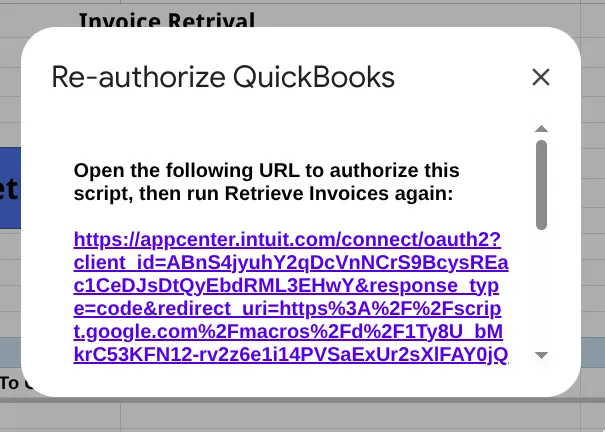
When service.hasAccess() returns false, I show the authorization URL in a modal dialog and throw a sentinel error that the caller catches to exit cleanly — no confusing “All Done!” message after a failed auth:
if (!service.hasAccess()) { const authorizationUrl = service.getAuthorizationUrl(); displayUserWarning( `Open the following URL to authorize, then run Retrieve Invoices again:<br><br>` + `<a href="${authorizationUrl}">${authorizationUrl}</a>`, "Re-authorize QuickBooks", ); throw new Error("QB_NEEDS_AUTH");}The QB re-authorization dialog showing the link the user needs to click.
The callback function is registered by name as a string and Apps Script routes the OAuth redirect to it:
function authCallback(request) { const service = getService(); const authorized = service.handleCallback(request); return HtmlService.createHtmlOutput(authorized ? "Success!" : "Denied.");}Querying the QuickBooks API
The QB REST API accepts a SQL-like query language with very limited filtering. For a date range search:
SELECT * FROM InvoiceWHERE MetaData.CreateTime >= '2025-01-01T00:00:00Z'AND MetaData.CreateTime <= '2025-03-31T23:59:59Z'ORDER BY MetaData.CreateTime, MetaData.LastUpdatedTimeQB doesn’t support OR in its query language. Client name and venue filtering can’t be pushed to the API — it happens in memory after results come back. For a business with hundreds of invoices per month, that’s fine. For tens of thousands, you’d need a different approach.
The API is a POST to https://{base_uri}/v3/company/{companyId}/query, with the SQL payload as plain text in the body and a Bearer token header. One gotcha: use muteHttpExceptions: true. Without it, any non-2xx response throws immediately and you lose the response body. With it, you have to check both the HTTP status code and the JSON body for a Fault object — QB returns errors inside 200 OK responses.
function generateInvoiceQuery(searchRules, service) { return { method: "POST", headers: { Accept: "application/json", "Content-Type": "application/text", Authorization: "Bearer " + service.getAccessToken(), }, payload: buildInvoiceQueryPayload(searchRules), muteHttpExceptions: true, followRedirects: true, };}The QB response wraps invoices in QueryResponse.Invoice[]. Each invoice carries the customer reference, shipping date, shipping address, line items, and an array of CustomField values where load-in and load-out dates live.
Writing each invoice to its own sheet tab
Each invoice gets its own tab in a monthly schedule spreadsheet (schedule_march_2025), named by its QB document number. The tab is always cleared and rewritten from scratch — no incremental updates, no merge logic. Simple and predictable.
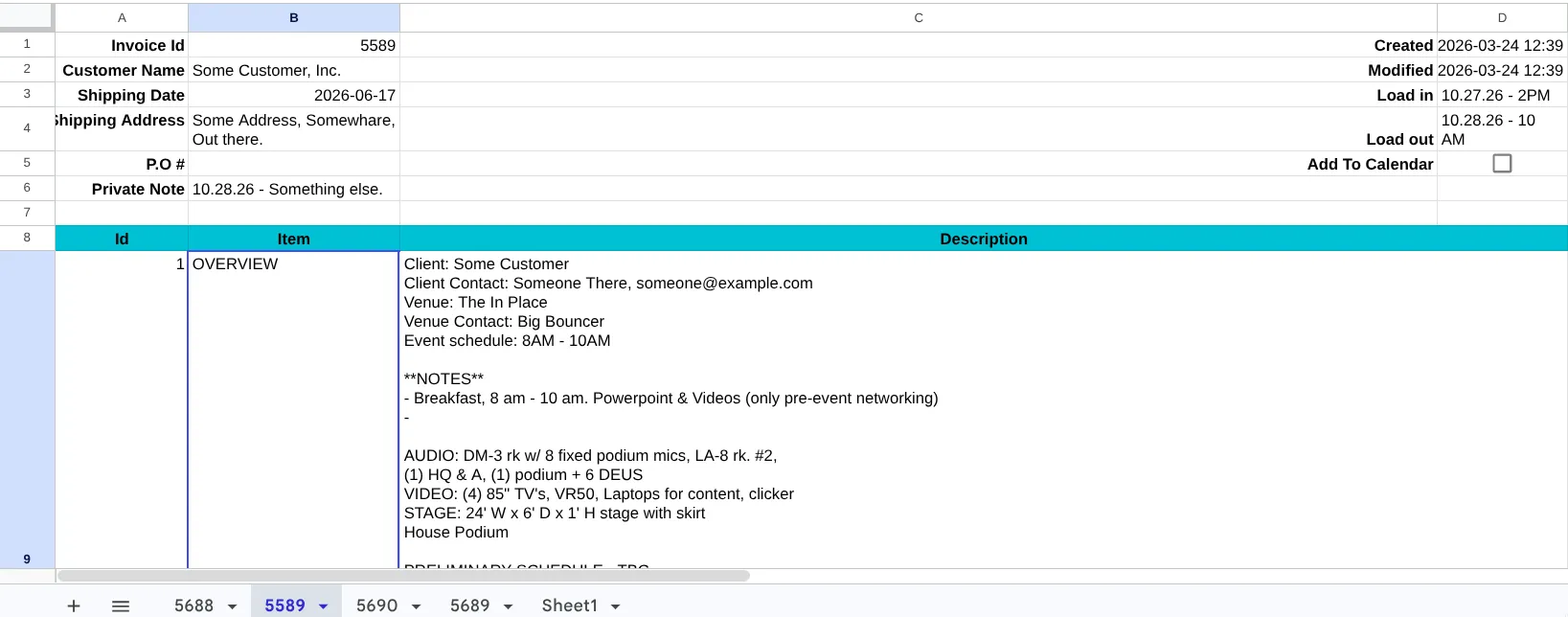
The tab layout is a fixed 7-row header block followed by job line items:
Row 1: Invoice Id | DocNumber | Created | timestampRow 2: Customer Name | CustomerRef.name | Modified | timestampRow 3: Shipping Date | ShipDate | Load in | (string, as entered)Row 4: Shipping Addr | address | Load out | (string, as entered)Row 5: P.O # | purchaseOrder | Add To Cal | ☑ checkboxRow 6: Private Note | PrivateNoteRow 7: (empty)Row 8: Id | Item | Description | QTY ← column header rowRow 9+: job line itemsA single invoice tab showing the header block and job line items below.
The dashboard summary table lists all retrieved invoices with clickable links in the Invoice Id column that jump directly to the invoice tab using the sheet’s GID:
const sheetUrl = `https://docs.google.com/spreadsheets/d/${invoiceSheet.getParent().getId()}/edit#gid=${invoiceSheet.getSheetId()}`;dashboardSheet .getRange(row, 1) .setRichTextValue( SpreadsheetApp.newRichTextValue().setText(invoice.DocNumber).setLinkUrl(sheetUrl).build(), );The date storage problem
The first version parsed load-in/load-out dates from the QuickBooks custom fields and stored them as Date objects, formatted yyyy-MM-dd HH:mm, with setNumberFormat() applied to the cells. This worked fine for some date formats that were passed down. However the client wanted to the ability to enter the dates and times in a looser format. They also wanted the ability to add or modify the job start and end times.
The date formatting broke the moment a user manually corrected a date in the sheet. Google Sheets silently reinterprets whatever you type against its own internal date logic, then setNumberFormat reformats the result — sometimes correctly, sometimes not. A user typing 3.15.2026 8:5 AM would end up with whatever Sheets decided it meant.
The fix: never parse at storage time. Store the raw trimmed string, apply no number format. D3 and D4 are plain cells. The string is exactly what the user typed or what came from QB, nothing more.
// extractCustomFields — just trim, no parsingfunction extractCustomFields(customFields) { const result = { loadInDate: "", loadOutDate: "", purchaseOrder: "" }; for (const field of customFields || []) { const val = (field.StringValue || "").trim(); if (field.Name === "Load in") result.loadInDate = val; if (field.Name === "Load out") result.loadOutDate = val; if (field.Name === "P.O. #") result.purchaseOrder = val; } return result;}Date validation only happens at calendar export time, via resolveCalendarDate(), which accepts either a Date object (passed through directly) or a string (parsed via parseCalendarDateTimeStr()).
Writing a flexible date parser for user-entered strings
Users type dates in at least a dozen reasonable ways. The parser needs to handle all of them without requiring a specific format:
3/15/2025 8:00 AM ← standard3.15.2025 - 8:00 AM ← dot separators + dash between date/time3-15-25 8:5 AM ← 2-digit year, single-digit minute3/15/25 - 11 AM ← hour-only3/15/2025 14:30 ← 24-hourThe single-digit minutes rule is the most surprising one: 8:5 AM means 8:50 AM, not 8:05 AM. If someone types a single digit after the colon, they almost certainly mean the tens place.
The function first normalizes the string — collapsing - separators to a space, collapsing multiple spaces, and removing spaces that crept in after colons — then tries two patterns:
function parseCalendarDateTimeStr(str) {  if (!str) return null;  const normalized = str    .trim()    .replace(/\s+-\s+/g, " ") // "3/15/25 - 8:00 AM" → "3/15/25 8:00 AM"    .replace(/\s+/g, " ") // collapse multiple spaces    .replace(/:\s+/g, ":"); // remove spaces after colons
  // 12-hour: m/d/yy[yy] h[:m] AM/PM  (/, . or - date separators)  const ampmMatch = normalized.match(    /^(\d{1,2})[\/.\-](\d{1,2})[\/.\-](\d{2,4})\s+(\d{1,2})(?::(\d{1,2}))?\s*(AM|PM)$/i,  );  if (ampmMatch) {    let [, month, day, year, hour, minuteStr, ampm] = ampmMatch;    if (year.length === 2) year = "20" + year; // "25" → 2025 only; not a Y2.1K concern yet    const minutes = minuteStr      ? minuteStr.length === 1        ? parseInt(minuteStr) * 10        : parseInt(minuteStr)      : 0;    let h = parseInt(hour);    if (ampm.toUpperCase() === "PM" && h !== 12) h += 12;    if (ampm.toUpperCase() === "AM" && h === 12) h = 0;    return new Date(parseInt(year), parseInt(month) - 1, parseInt(day), h, minutes);  }
  // 24-hour: m/d/yy[yy] HH:mm[:ss]  const h24Match = normalized.match(    /^(\d{1,2})[\/.\-](\d{1,2})[\/.\-](\d{2,4})\s+(\d{1,2}):(\d{1,2})(?::\d{2})?$/,  );  if (h24Match) {    let [, month, day, year, hours, minutes] = h24Match;    if (year.length === 2) year = "20" + year;    return new Date(      parseInt(year),      parseInt(month) - 1,      parseInt(day),      parseInt(hours),      parseInt(minutes),    );  }
  return null; // no pattern matched}
Pulling job descriptions into calendar events
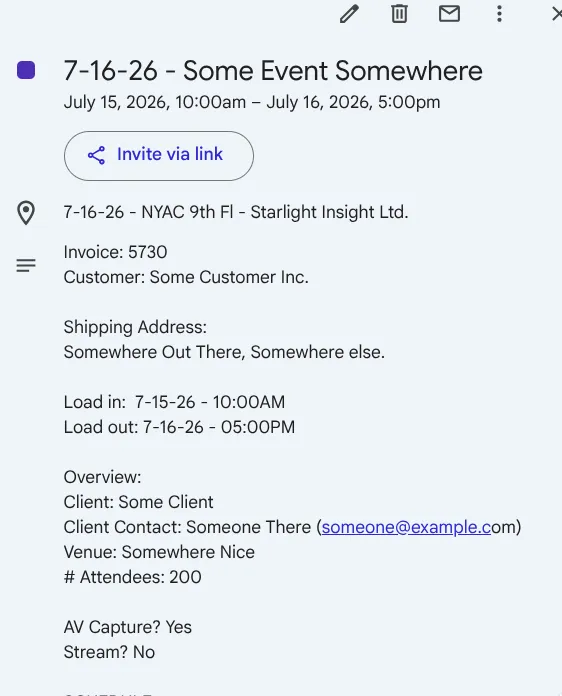
When exporting to Google Calendar, the event description includes the invoice number, customer name, address, and load times. It also includes a summary pulled from the job line items.
The convention in this shop is to have an OVERVIEW line item with a human-readable summary of the job. If one exists, it goes into the calendar event. If there’s no OVERVIEW line, the fallback is the description from the first job line (id = 1):
let overviewDescription = "";let idOneDescription = "";for (let i = JOB_DATA_START_ROW - 1; i < data.length; i++) { if (data[i][COL.JOB_ITEM - 1] === "OVERVIEW") { overviewDescription = data[i][COL.JOB_DESC - 1] || ""; break; } if (!idOneDescription && data[i][COL.JOB_ID - 1] == 1) { idOneDescription = data[i][COL.JOB_DESC - 1] || ""; }}if (!overviewDescription) overviewDescription = idOneDescription;Before creating an event, the function searches for an existing event with the same title in the same time window. If one exists, the user is prompted to replace it or skip — a duplicate check that matters when you re-retrieve invoices after updates.
A Google Calendar event created from an invoice, showing load-in/load-out times and the OVERVIEW description.
Testing GAS code without a test framework
Apps Script has no native test framework. Files have no import/export — everything is global. I wanted real unit tests, not just manual clicking in the sheet.
The approach: use Vitest in Node, and load GAS files into globalThis at test time with a small loader that patches function declarations into globalThis assignments:
function loadGas(fileName) { const code = fs.readFileSync(path.resolve(__dirname, "..", fileName), "utf8"); const patched = code.replace(/\bfunction (\w+)\s*\(/g, "globalThis.$1 = function $1("); new Function("globalThis", `with(globalThis){${patched}}`)(globalThis);}The with(globalThis) wrapper means runtime lookups — Logger, DEBUG, all the layout constants — resolve from globalThis instead of throwing ReferenceError. GAS services like UrlFetchApp and CalendarApp are mocked per test with vi.fn().
One thing to watch: dashBoard.js calls setupAndValidate() at the top level when the file is parsed. That function reads from Script Properties, which don’t exist in Node. That file can’t be loaded in tests — its constants are declared manually in tests/setup.js and kept in sync by hand. It’s a wart, and fixing it would mean moving the top-level call into onOpen().
The suite runs 107 tests across 4 files in under 250ms.
Known limitations worth knowing before you fork this
100-invoice limit per query. That’s a QuickBooks API constraint, and the app doesn’t paginate. A busy month with a wide date range could silently miss invoices past the limit.
One OAuth authorization for the whole script. The shared Script Properties token is convenient for a small team but means one person’s authorization covers everyone. If that person’s QB account is revoked, everyone loses access until someone re-authorizes.
dashBoard.js is untestable as written. The top-level setupAndValidate() call couples the file load to Script Properties. Moving it to onOpen() would fix this but requires updating the test constants setup.
The source is on GitHub — adapt it freely for your own QB integration.